
You need organization admin access. Coaches live on the organization, not on an individual studio.
1
Open Coaches
Go to Organizations, open yours, and select the Coaches tab.
2
Create a Real Talk Coach
Tap + Create Coach and pick Real Talk Coach.
3
Confirm it in the library
The new coach appears on the Coaches page.
4
Turn debrief on
Use the organization toggle for every catalog scenario, or enable it on a single roleplay under Skills → Advanced.
5
Debrief the attempt
After practice, tap Debrief with me in the bottom right of the snapshot.
Step 1 — Open Coaches in your organization
Go to Organizations and open yours. In the tab row you will now see Coaches, between Policies and Team. That is the home for debrief coaches and standalone coaching sessions.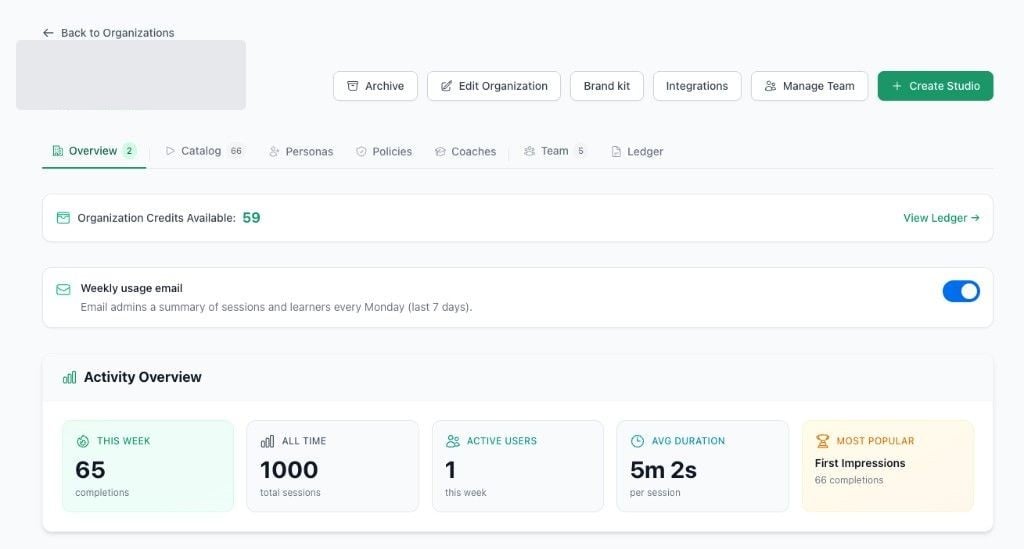
Open your organization. Coaches is in the tab row, between Policies and Team.
Step 2 — Create a Real Talk Coach
On the Coaches page, tap + Create Coach. When it asks what kind of coach this is, pick Real Talk Coach. That specialism is built for post-roleplay debrief: they work from what actually happened — the moment, the phrasing, the choice you avoided — and close with one behaviour to try next time. They do not rescore the session. They help the learner use it. You can create your own coach instead. Tailor the style to the conversation you want after practice: more reflective, more action-oriented, sharper, or slower. Real Talk Coach is the fastest way to a debrief that is ready on day one. Your own coach is how you make it sound like you.Step 3 — The coach appears in your library
Save the coach and you are back on the Coaches page. The new coach is in the library — name, specialism, and a card you can play or edit.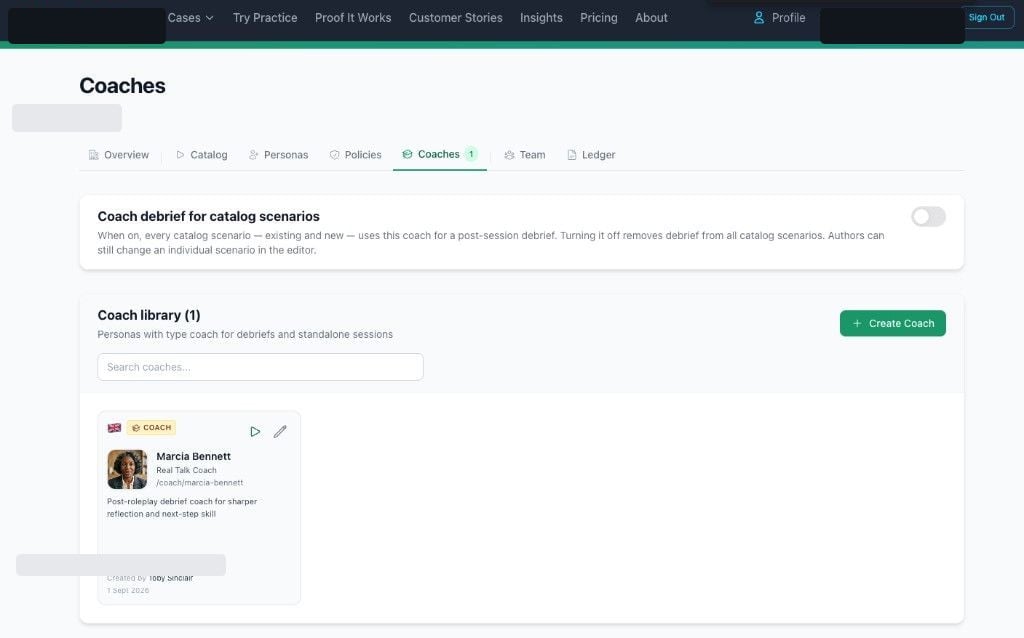
The coach lands in your library. The toggle at the top attaches them to every catalog scenario.
Step 4a — Turn debrief on for every catalog scenario
At the top of the same page: Coach debrief for catalog scenarios. Turn it on and choose the coach. Every catalog scenario — existing and new — uses that coach for a post-session debrief. Turn it off and debrief is removed from all catalog scenarios. Authors can still change an individual scenario in the editor (step 4b). Use this when the default should be: practise, then talk it through.Step 4b — Or turn it on for one roleplay
For a single scenario: Edit roleplay → Skills → Advanced → Debrief with coach. Turn the toggle on, pick the coach from the list, and save. Use this when only some roleplays should debrief, or when a scenario needs a different coach from the organization default — for example a sales debrief on a pitch, or a leadership coach on a feedback conversation.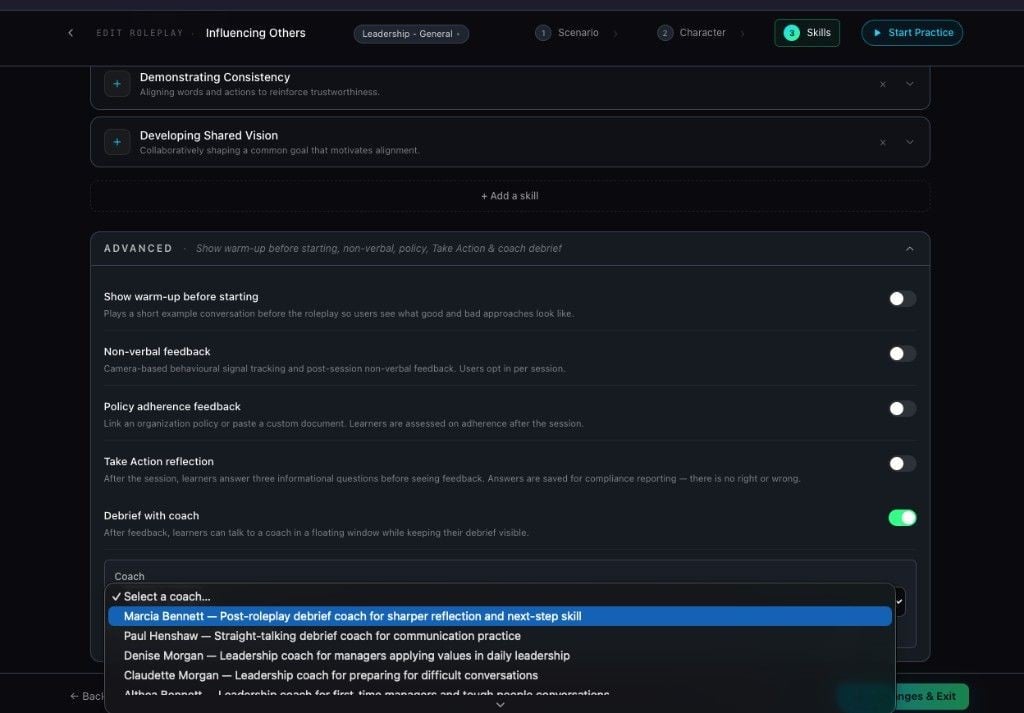
Skills → Advanced → Debrief with coach. Turn it on, pick the coach, save.
Step 5 — Debrief the attempt you just finished
Run the roleplay, finish, and open the snapshot. The coach is waiting in the bottom right: Debrief with me. Tap it. The report stays on screen. The coach sits with you in a floating window, looking at the same attempt — this transcript, this moment, this miss.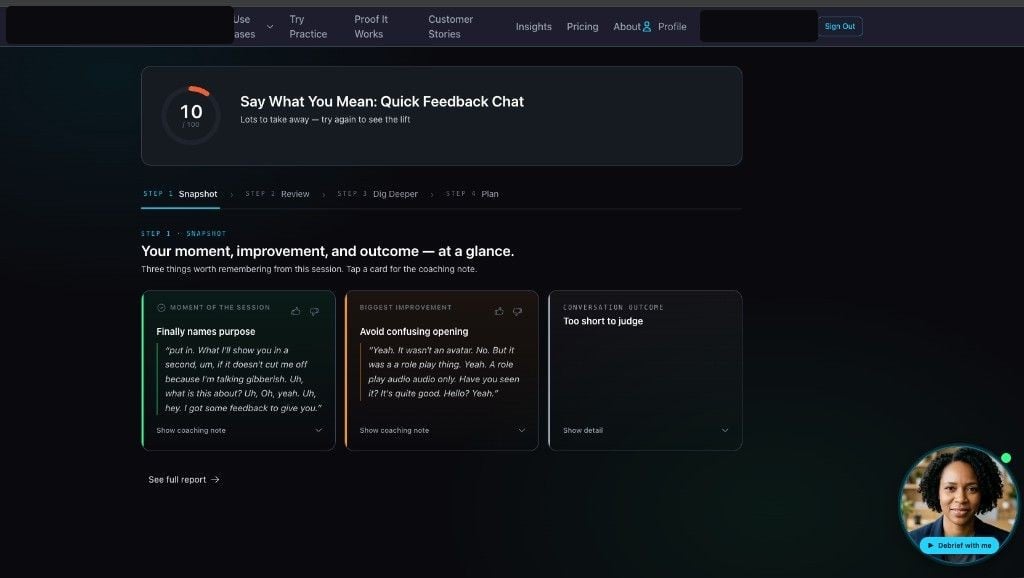
After the attempt, the coach is on the snapshot. Tap Debrief with me.
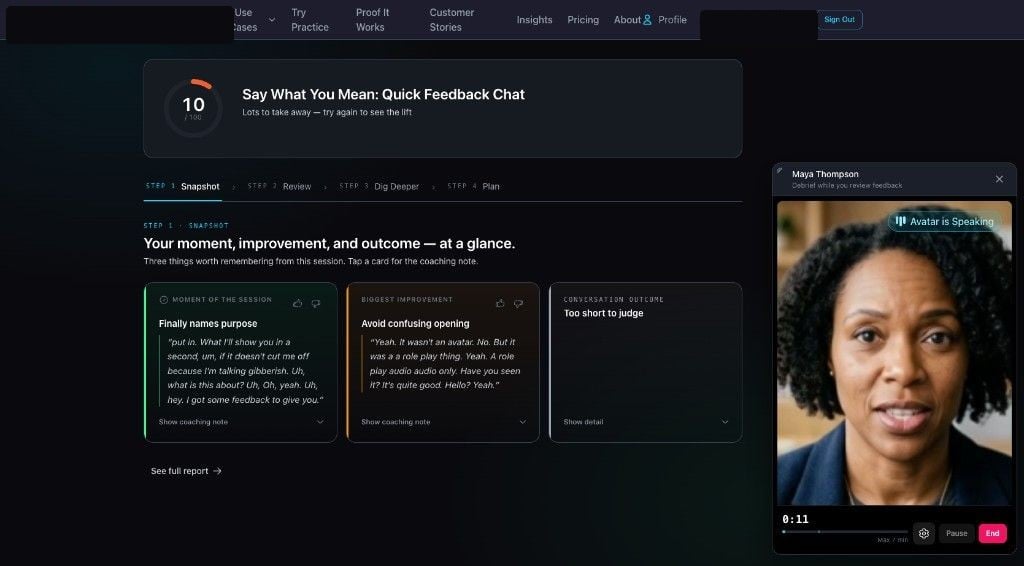
Debrief while you review. The report stays open. The coach sits with you in it.
Credits, length, and custom coaches
Can I create my own coach instead of Real Talk Coach?
Can I create my own coach instead of Real Talk Coach?
Yes. Create any coach type — leadership, sales, communication, or your own — and attach it from the organization toggle or from Skills → Advanced on a roleplay. Write the style in plain language: more questions or more direction, more reflection or more action. Edit the coach later from the library.
Do coach debriefs use credits?
Do coach debriefs use credits?
Yes. Credits are deducted at the same rate as a roleplay. The debrief is a live coaching conversation, not a written note, so it uses the same credit pool as practice.
Can I cap how long the debrief lasts?
Can I cap how long the debrief lasts?
Yes. Set max session length on the coach — for example 5 minutes — in the coach’s session settings when you edit the persona. Learners see that cap in the debrief window. The default is 15 minutes.
Can I turn debrief on for one scenario and leave the rest off?
Can I turn debrief on for one scenario and leave the rest off?
Yes. Leave the organization toggle off, then enable Debrief with coach on that roleplay under Skills → Advanced. The organization toggle is the catalog-wide default; the editor is the override.
Where does the coach appear for the learner?
Where does the coach appear for the learner?
On the feedback page after they finish the attempt, in the bottom right. They tap Debrief with me. The snapshot stays open. The coach talks with them about that session.
Related
- Feedback & evidence — the snapshot the coach sits on
- Admin & organizations — organization tabs, credits, and catalog
- Practice experience — the live session that comes before debrief